How to Create a Conditional Access Policy for Identity Verification
 Samuel Eng
Conditional Access can require users to verify their identity with Microsoft Entra Verified ID after they sign in. Identity verification doesn't replace sign-in or MFA. The user signs in as usual, then presents a Verified ID and completes Face Check before they get access. To also require phishing-resistant MFA, add an authentication strength to the same policy.
This guide creates a policy that targets an authentication context, in this example the one linked to a SharePoint site in How to Apply an Authentication Context to a SharePoint Site.
Prerequisites
- An identity verification profile that targets your test group, and Verified ID enabled as an authentication method for that group. See How to Create an Identity Verification Profile
- A test user in the group with access to the protected resource, such as the SharePoint site.
- An authentication context. See How to Apply an Authentication Context to a SharePoint Site
Create a Conditional Access policy
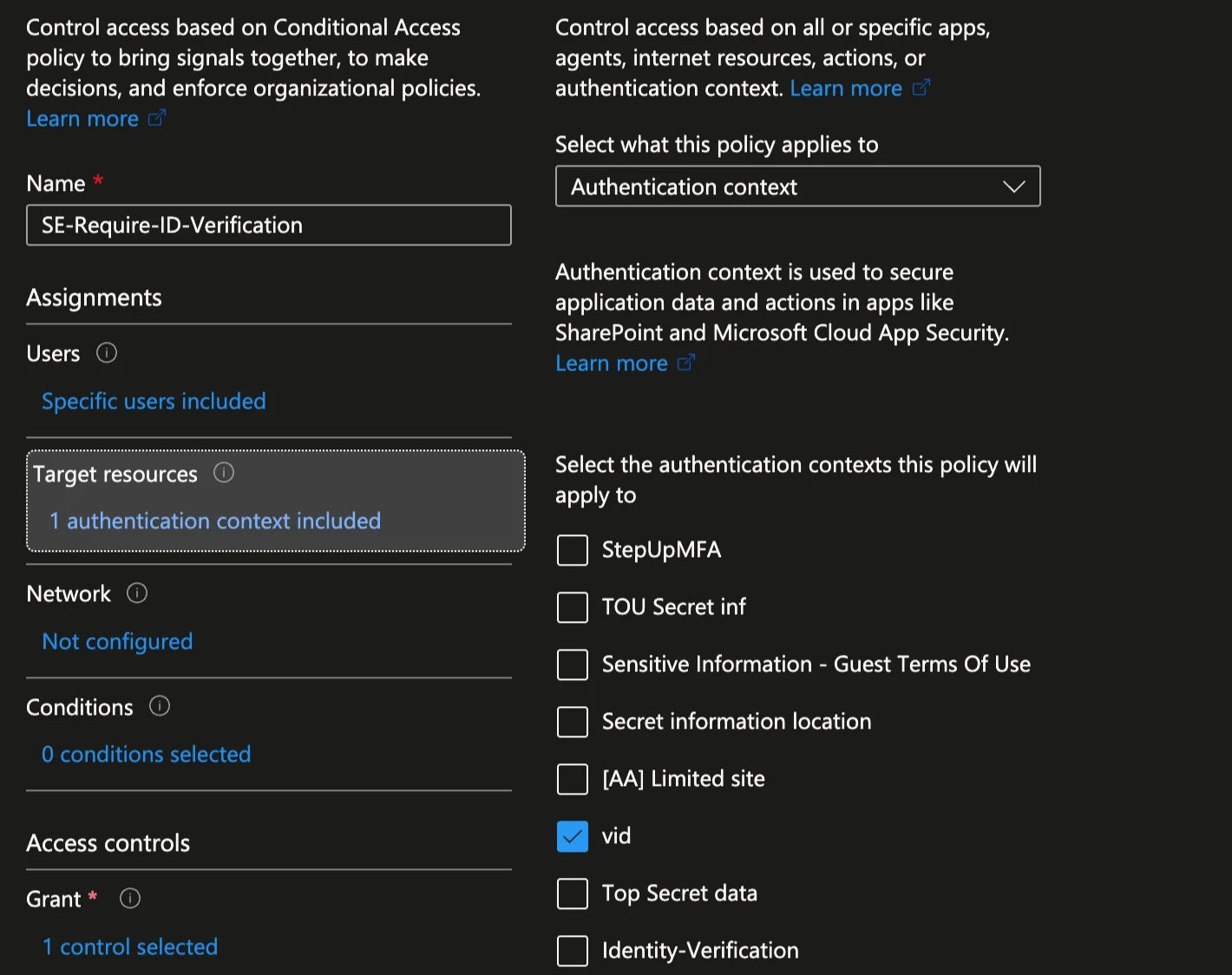
Users and target resources: In Entra ID → Conditional Access → Policies, create or edit a policy and select your test group under Users. Under Target resources, choose Authentication context and select the context linked to the SharePoint site.
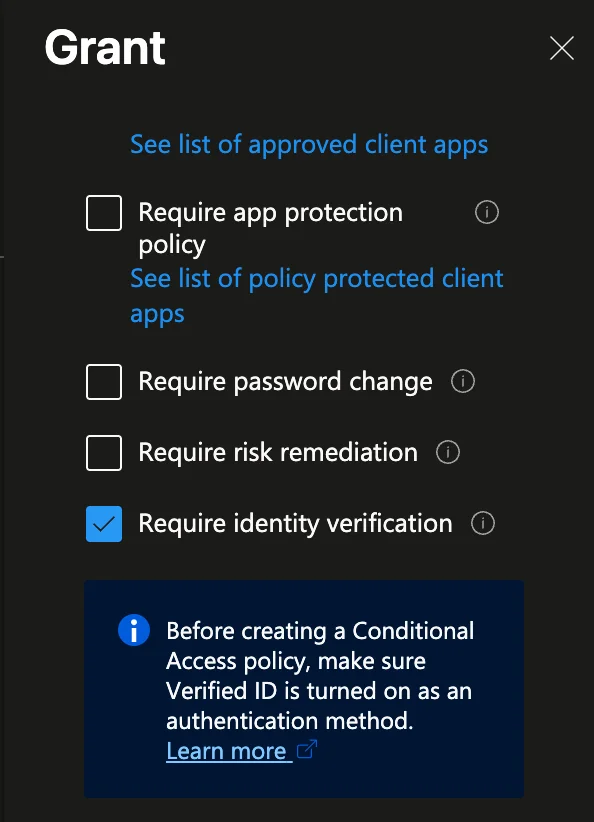
Grant: Select Grant access and Require identity verification.
Enable: Review the policy, enable it for the pilot, and save.
Other ways to use this grant
The grant control isn't limited to authentication contexts. At the time of writing, you can also use it with these targets:
- An app: require identity verification for a whole cloud app instead of a single site.
- Register security information: a user action. Together with an authentication strength, it requires identity verification before users add a sign-in method, such as a passkey.
- Account onboarding and recovery: a user action. Add conditions to recovery and onboarding, for example to block them outside trusted locations or when sign-in risk is detected. Policies that target All resources also apply to recovery and onboarding by default. To exclude them, go to Conditional Access → Settings.
- User or sign-in risk: a risk-based policy can require identity verification instead of MFA or a password change. Completing it can also remediate the risk in Identity Protection. Confirm this in your tenant before you rely on it.
Next steps
Sign in to the site as the test user. A user without a Verified ID gets one first; see Get a Verified ID from an Identity Verification Provider. After that, they present it; see Present a Verified ID When Required.
In this series
- How to Require Identity Verification on a SharePoint Site: overview
- How to Apply an Authentication Context to a SharePoint Site
- How to Create an Identity Verification Profile
- How to Create a Conditional Access Policy for Identity Verification (this post)
- Get a Verified ID from an Identity Verification Provider
- Present a Verified ID When Required